Daily Order
Step 1: Click Daily to open the Daily Order page. There will be default 3 tabs in Daily Order page.
Step 2: New tab (Pending tab) will be displayed if user is in Premium Plan and enable website setting feature (refer to Package and Website Setting to unlock this feature).

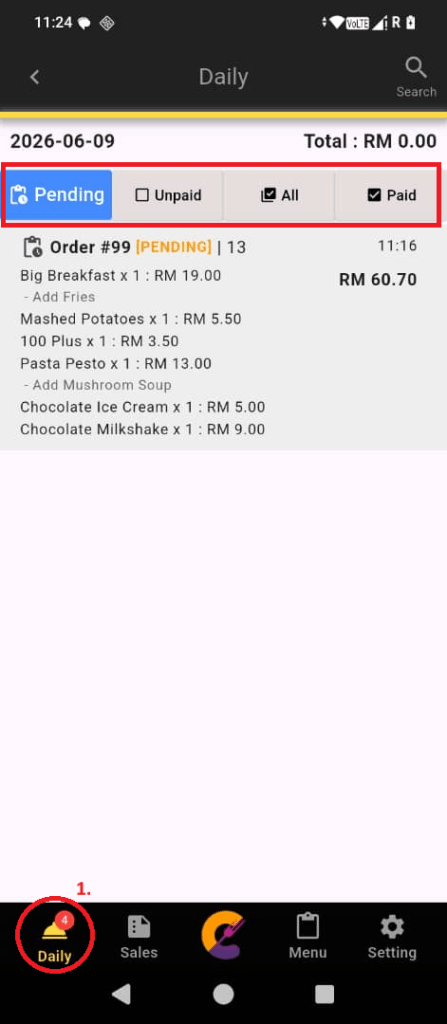
Pending Tab
- This tab will be visible when user is in Premium Plan and enable website setting
- This tab will display today’s pending order from website ordering. User may approve the order from this tab.
Only today’s pending order will be display at here; approved and rejected order will be removed from this tab.

Unpaid Tab
This tab is use to display today’s all unpaid orders.
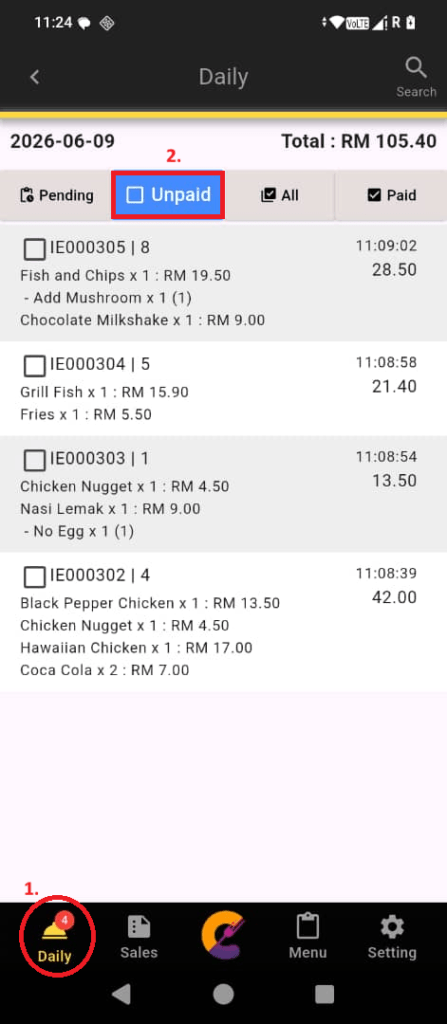
All Tab
This tab is use to display today’s all paid and unpaid orders.

Paid Tab
This tab is use to display today’s all paid orders.

Add New Order
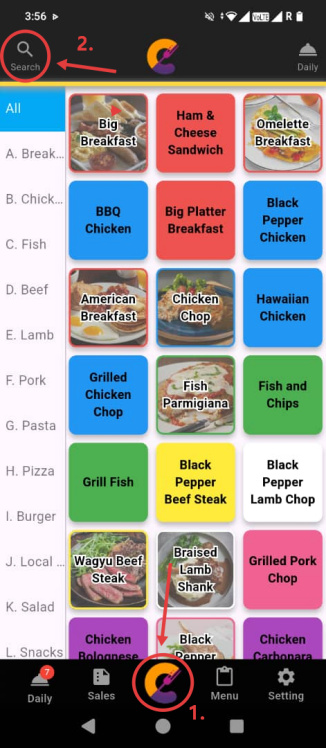
Step 1: Click app icon to enter food menu and select the main item.
- The food items will be displayed with their uploaded images if available.
- If no image is uploaded, the food name will be displayed as text.
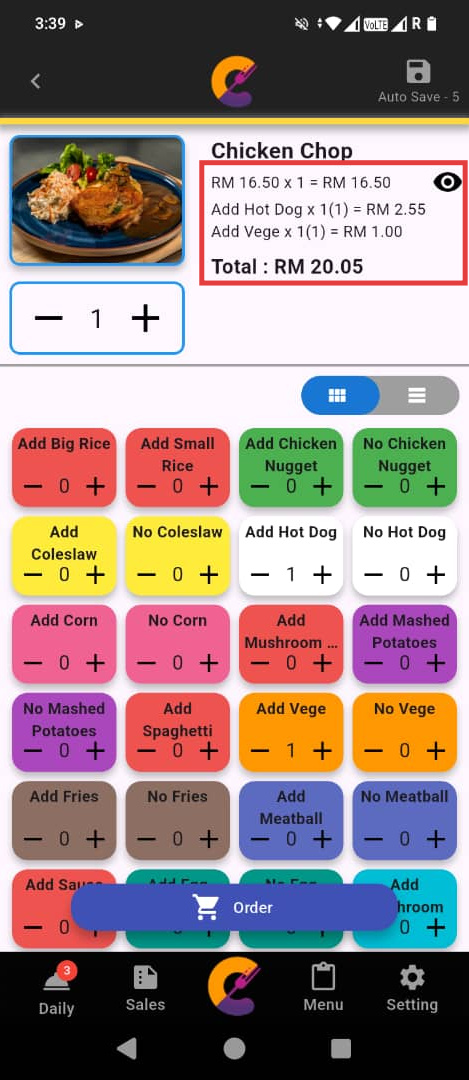
Step 2: Select the side dish if needed. Click Order button to add item to order.

Step 3: Click eye icon to view selected side dish price.

Search Food
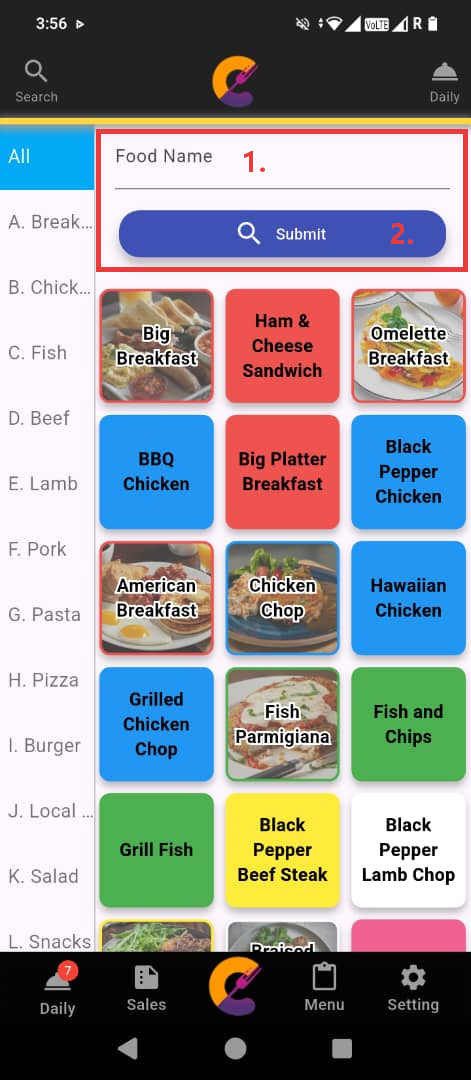
Step 1: Click the app icon to enter the food menu page, and click the Search icon at the top left corner.
Step 2: Enter the Food Name, and click Submit button to filter and display only the food items that match the search keywords.
- The matched items will be displayed across different categories for easy reference.
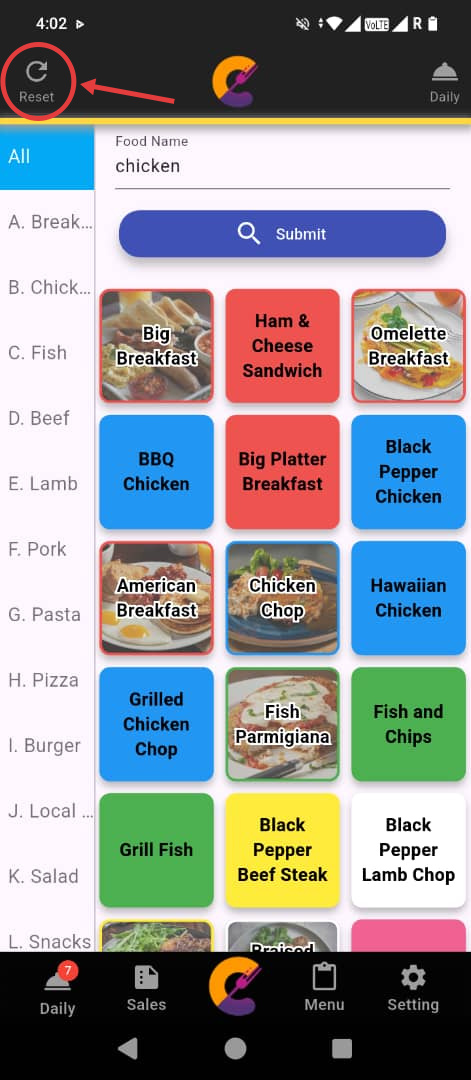
Step 3: Click the Reset button at the top left corner to clear the search and return to the full menu list.
Payment Method and Discount
Payment Method
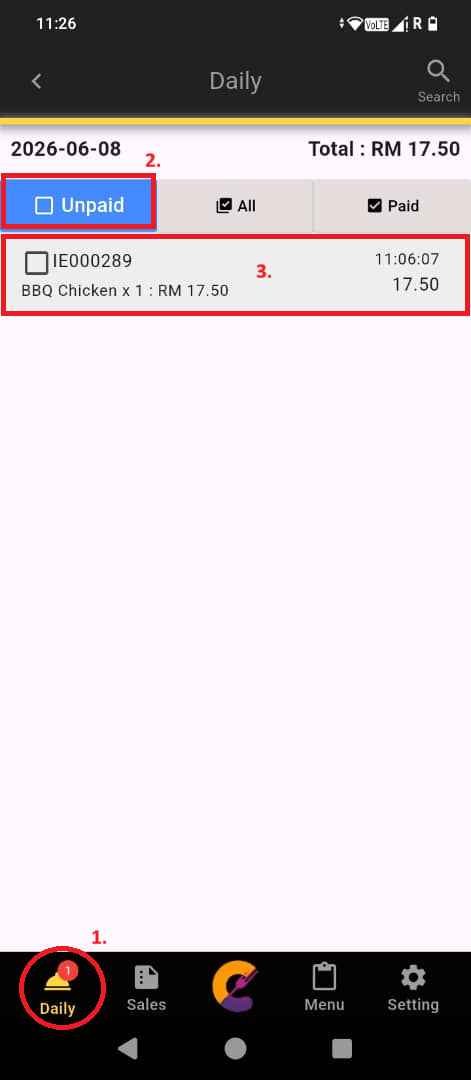
Step 1: Click Daily to open the Daily Order page, Go to Unpaid tab and click on the specific order to enter invoice page.

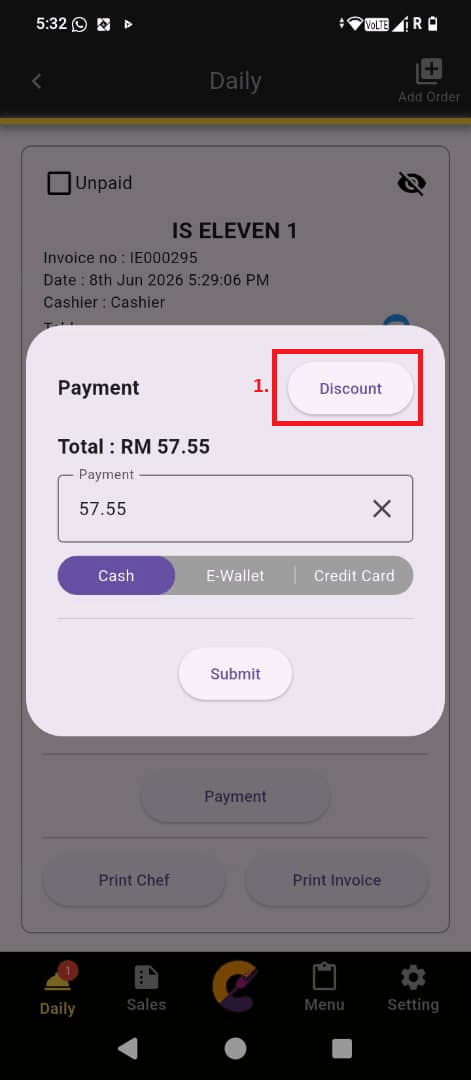
Step 2: Click Payment, insert Payment amount, and select the payment method (Cash, E-Wallet and Credit Card).


Discount
Step 1: Click Discount to select discount for this invoice
Step 2: The following features are included:-
a) Click to return Payment page.
b) Click to redirect to Discount List page (refer to Discount to add a new discount).
c) Click to enter discount amount manually (minus amount/percent).
d) Click to select discount on invoice (refer to Discount to add a new discount).
e) Click Clear to clear discount on this invoice.

Add Item to Order
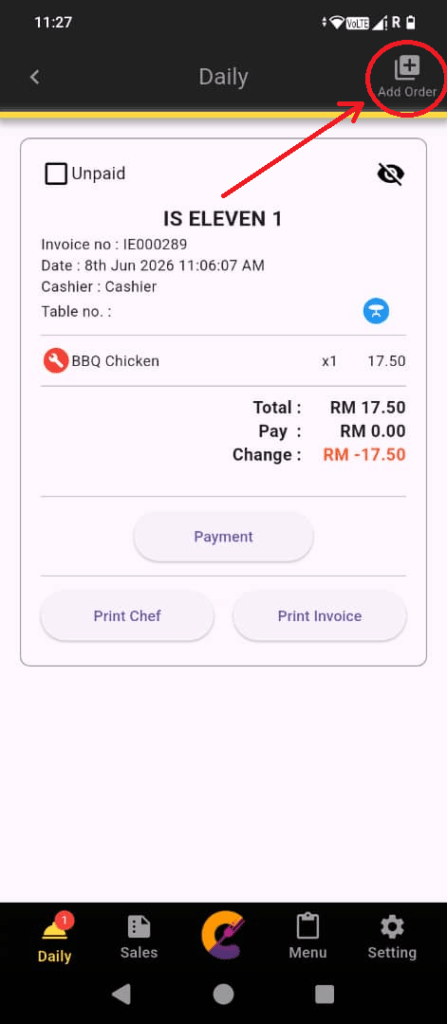
Step 1: Click Daily to open the Daily Order page, Go to Unpaid tab and click on the specific order to enter invoice page.
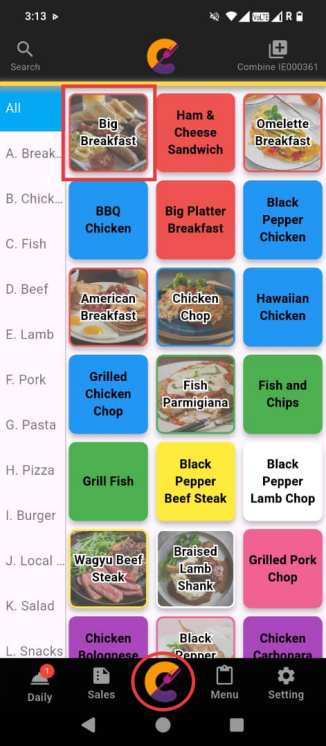
Step 2: Click Add Order(top right corner) to enter food menu page, and select item to add item to same order.

Edit Order Item
Step 1: Click Daily to open the Daily Order page, Go to Unpaid tab and click on the specific order to enter invoice page.

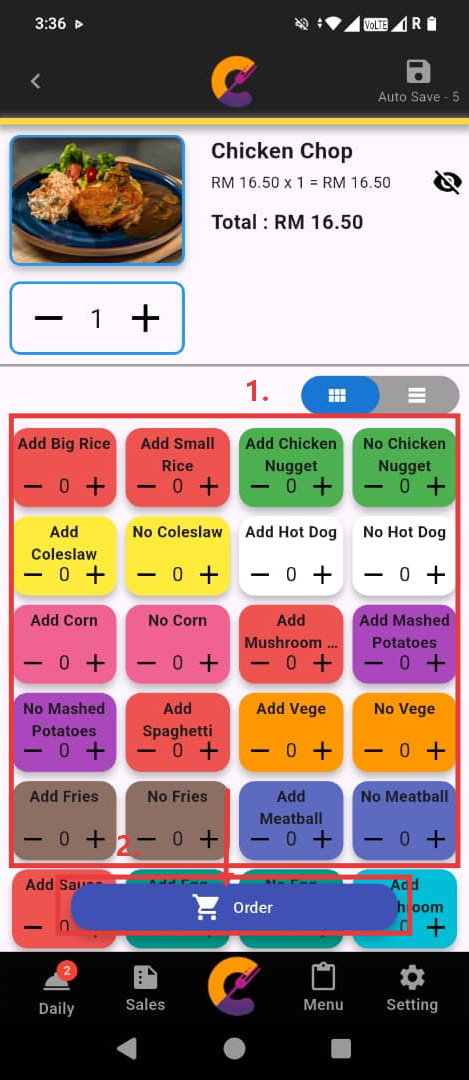
Step 2: Click Edit icon to edit food detail, click Edit button to save the changes.

Combine Order Item
This feature is use to combine one order to another order.
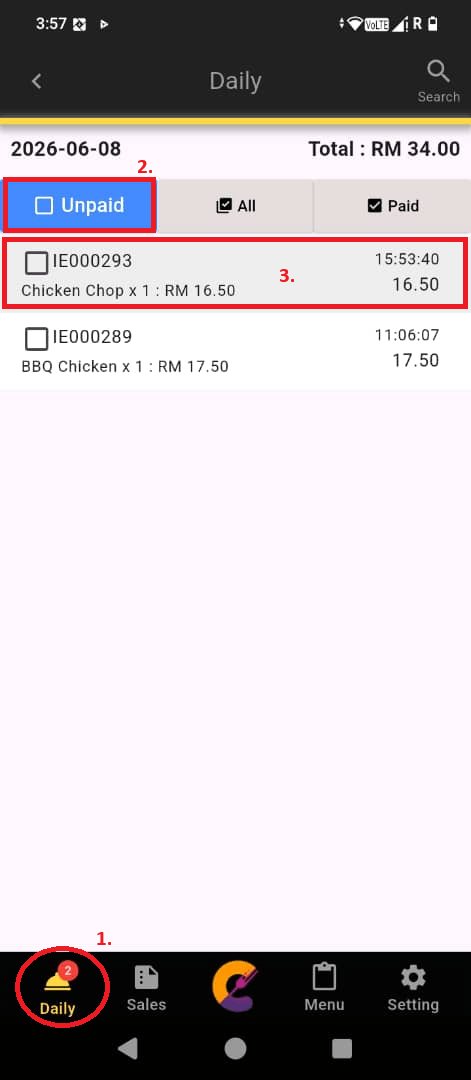
Step 1: Click Daily to open the Daily Order page, Go to Unpaid tab and click on the specific order that you wish to merge.

Step 2: Click Add Order, and click Daily and Unpaid tab again. Then click the order you wish to combine to.

Step 3: Click Combine <Invoice No.> (top right corner) to cancel the action.

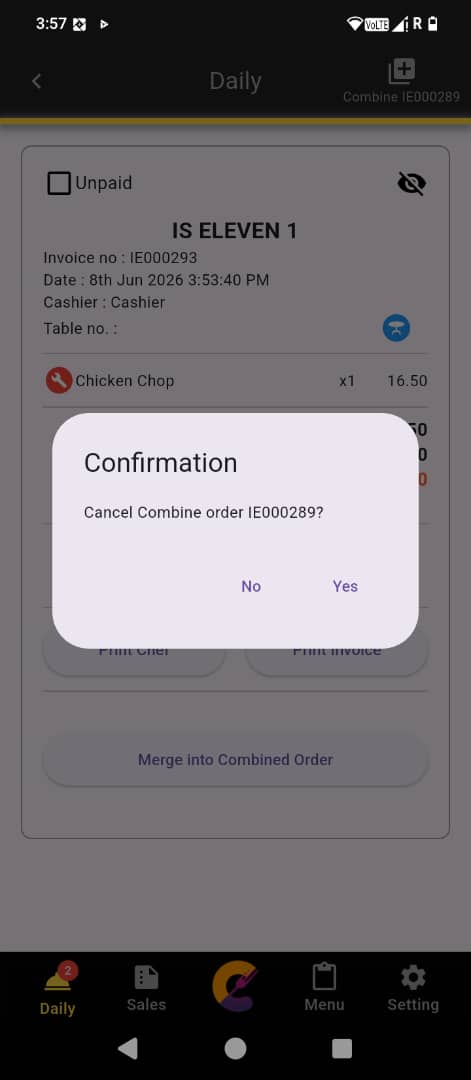
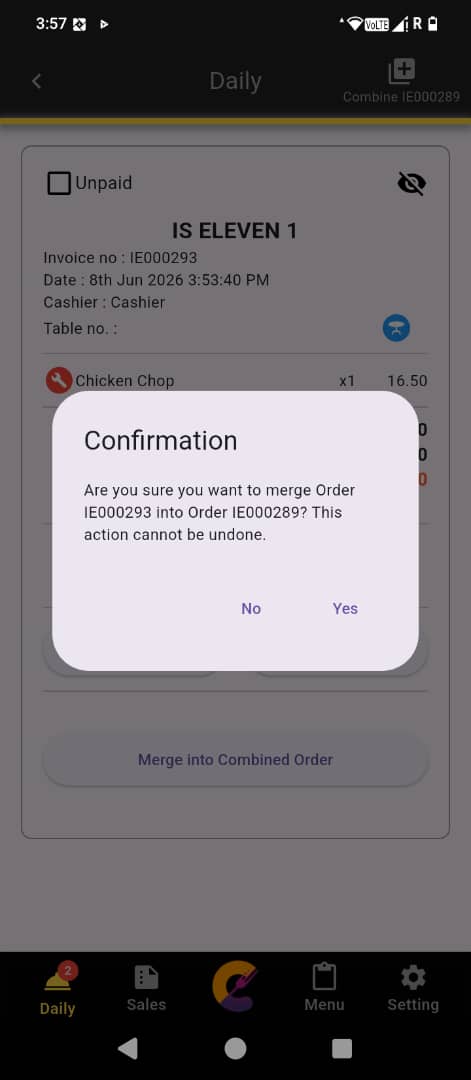
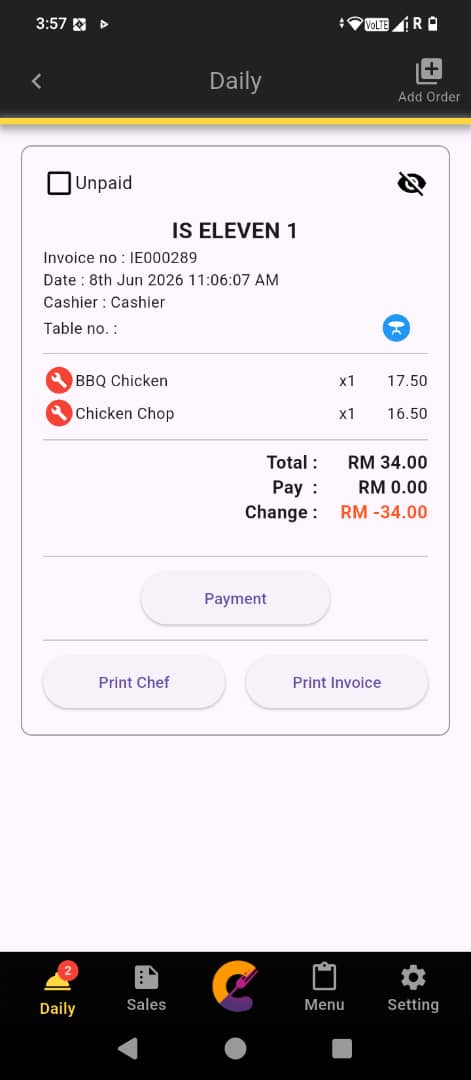
Step 4: Click Merge into Combined Order button and click Yes to combine both order.

Split Order Item
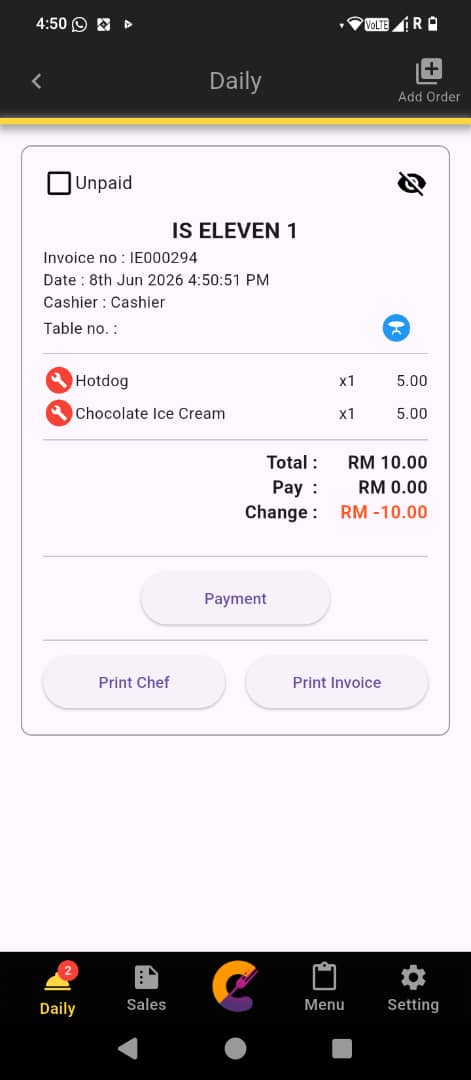
This feature is used to split items from an existing order into a brand new order.
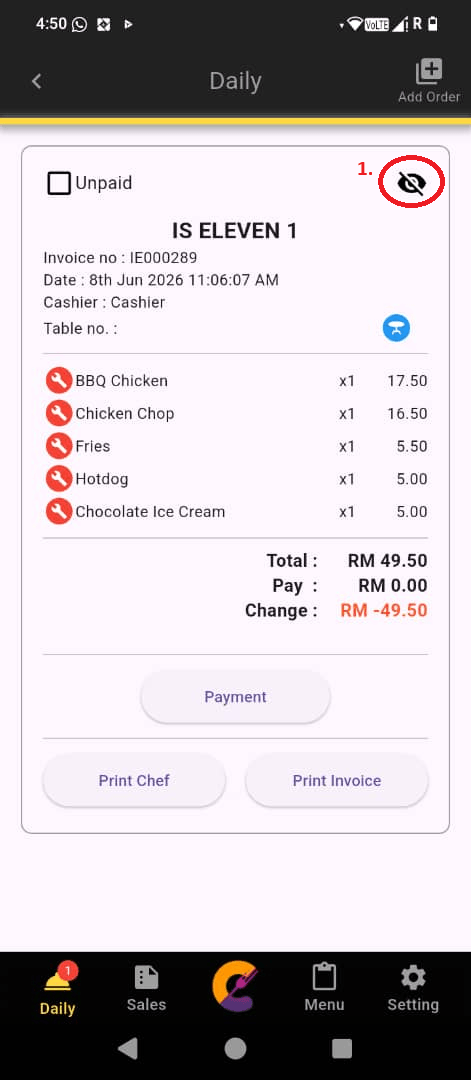
Step 1: Click Daily to open the Daily Order page, Go to Unpaid tab and click on the specific order that you wish to split order item.
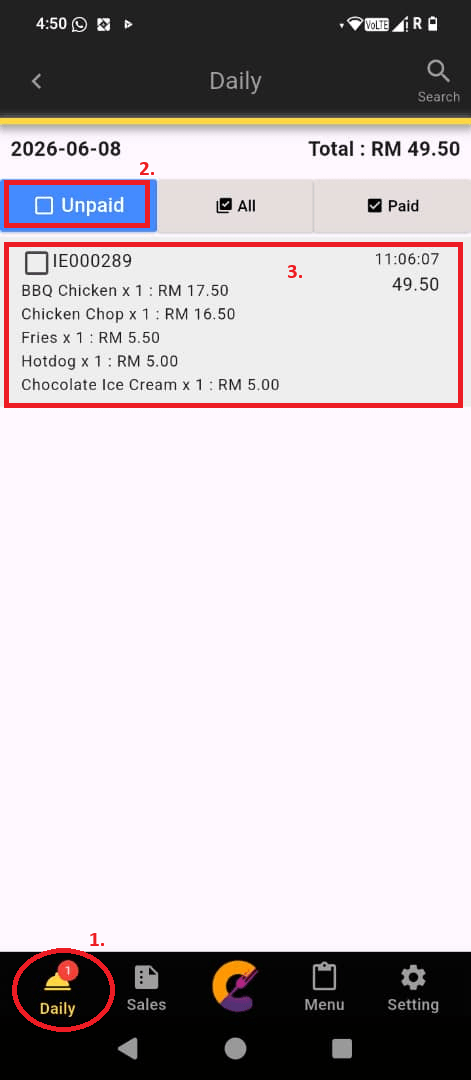
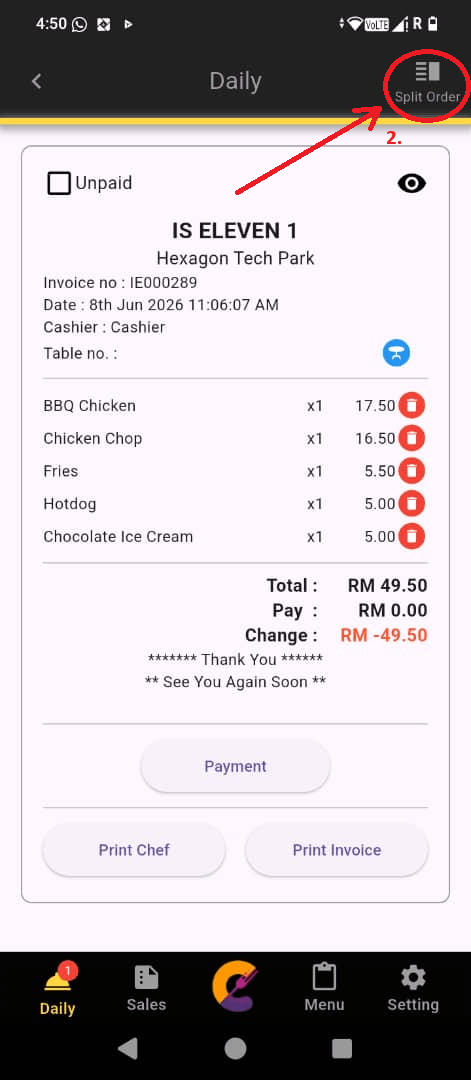
Step 2: Click the eye icon, and select Split Order(top right corner).
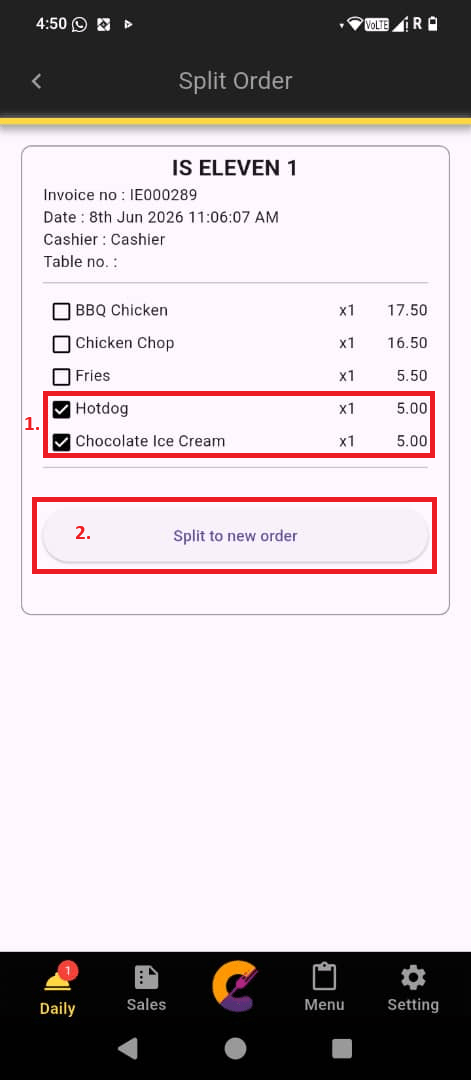
Step 3: Select the order item that wish to split to new order, click Split to new order button, and click Yes to confirm to split the item.
Remove Order Item
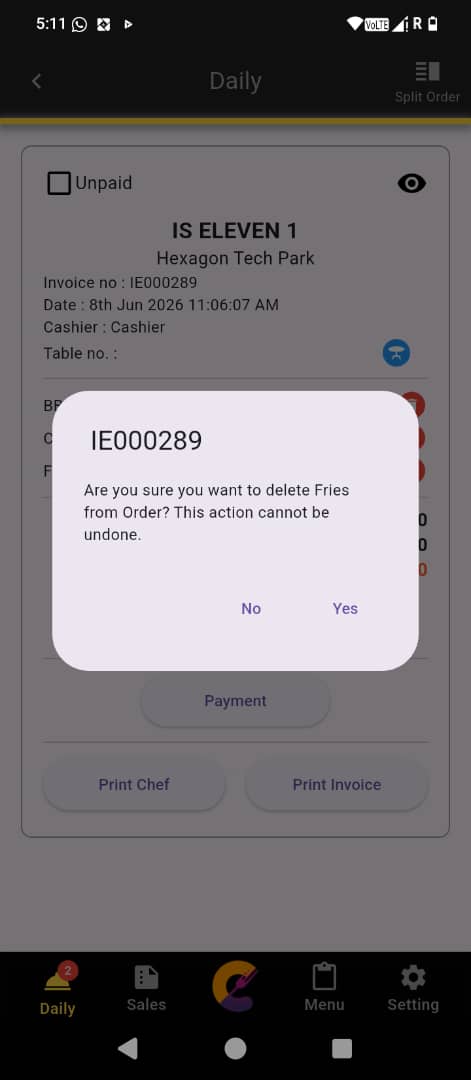
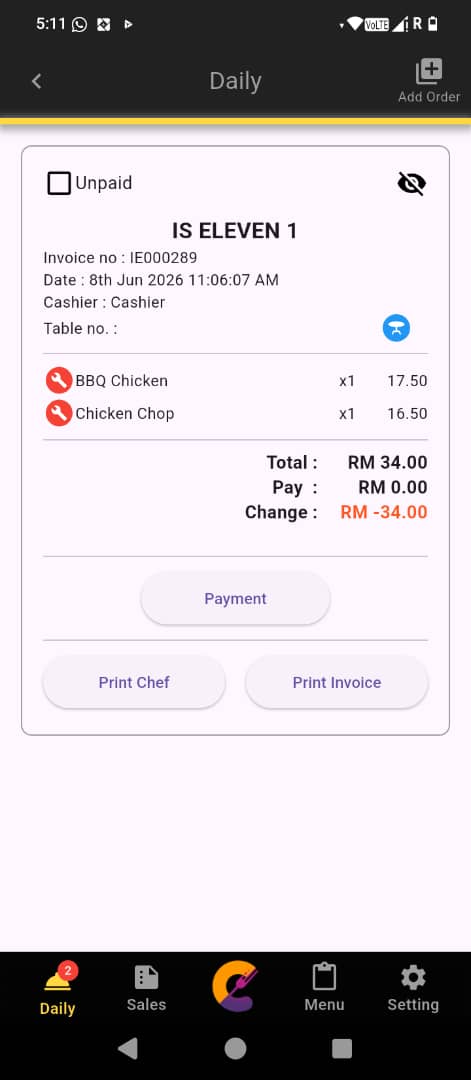
This feature is use to remove order item from order.
Step 1: Click Daily to open the Daily Order page, Go to Unpaid tab and click on the specific order that you wish to remove order item.
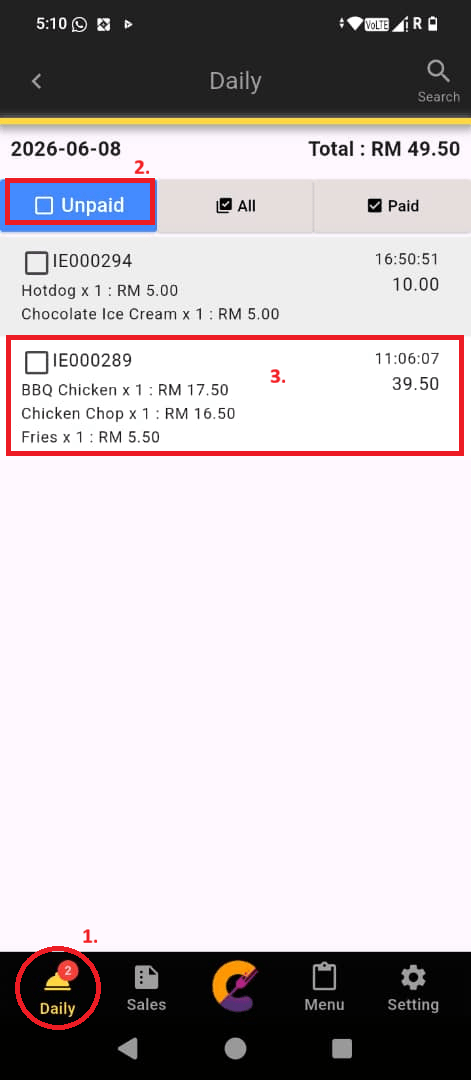
Step 2: Click the eye icon, and select trash icon to remove the order item。


Search Order Item
Step 1: Click Daily to open the Daily Order page and click the Search icon.

Step 2: Enter the Invoice No.or Table No. in the search field to locate a specific order.
Step 3: Click the Submit button to confirm the search and view the filtered results.


